SumatraPDF Review: A Lightweight and Free PDF Reader for Windows
If you are looking for a simple PDF reader for Windows, you do not necessarily need a large application packed with features you will never use.
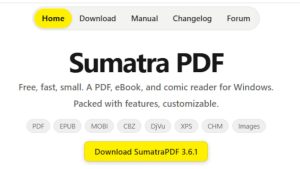
SumatraPDF takes a different approach. It is lightweight, fast, free, and focused primarily on reading documents rather than becoming an all-in-one PDF management suite.
In this review, I take a closer look at SumatraPDF, what it does well, where it falls short, and who should consider using it.
What Is SumatraPDF?
SumatraPDF is a free and open-source document reader for Windows.
Although the name suggests that it is only a PDF reader, the application can also open several other document formats, including:
- EPUB
- MOBI
- XPS
- DjVu
- CHM
- CBZ
- CBR
The main philosophy behind SumatraPDF is simplicity.
Instead of trying to replace every PDF application on your computer, SumatraPDF concentrates on opening and reading documents quickly.
That makes it particularly interesting if you find applications such as Adobe Acrobat Reader unnecessarily large or complicated for basic PDF reading.
Is SumatraPDF Free?
Yes.
SumatraPDF is free to download and use, and it is open-source software.
There is no subscription required to read your PDF files and there are no premium features that you need to unlock just to use the basic reader.
For users who simply want to open and read PDF documents, that is a significant advantage.
SumatraPDF Features
SumatraPDF deliberately has a relatively small feature set compared with full PDF editors.
Its main features include:
Fast PDF Viewing
The primary purpose of SumatraPDF is opening and reading documents.
It starts quickly and uses relatively few system resources compared with many larger PDF applications.
This can be useful if you frequently open PDFs but do not want another resource-heavy application running on your computer.
Multiple Document Formats
SumatraPDF is not limited to PDF files.
It can also handle several ebook and comic-book formats, making it useful as a general document reader.
Search
You can search for words and phrases within PDF documents.
For long documents, this is considerably more practical than manually scrolling through pages.
Bookmarks and Table of Contents
Depending on the document, SumatraPDF can display a document’s table of contents and allow you to navigate between sections.
Keyboard Shortcuts
SumatraPDF has extensive keyboard support.
For users who prefer navigating documents without constantly reaching for the mouse, this can make the application very efficient.
Portable Version
One particularly useful feature is the availability of a portable version. This means you can run SumatraPDF without installing it in the traditional way.
That can be useful when working on multiple computers or when you want to carry a PDF reader on a USB drive.
What SumatraPDF Does Not Do
This is where SumatraPDF needs to be understood correctly. It is primarily a PDF reader, not a complete PDF editor. If you need to create complex PDF forms, edit existing PDF text, perform advanced annotations, sign documents, convert files, or manage large collections of PDFs, SumatraPDF may not provide everything you need. This is not necessarily a weakness. It is simply a different approach. A lightweight PDF reader does not need to compete feature-for-feature with applications designed to be complete PDF productivity suites.
SumatraPDF vs Adobe Acrobat Reader
Adobe Acrobat Reader is one of the most recognizable PDF applications available. It offers considerably more functionality than SumatraPDF, but that also makes it a larger and more feature-rich application.
The difference can be summarized quite simply:
| Feature | SumatraPDF | Adobe Acrobat Reader |
|---|---|---|
| PDF reading | Yes | Yes |
| Free version | Yes | Yes |
| Open source | Yes | No |
| Lightweight | Yes | No |
| Multiple ebook formats | Yes | Limited |
| Basic document navigation | Yes | Yes |
| Advanced PDF features | Limited | More extensive |
| Full PDF editing | No | Limited without paid features |
| Portable version | Yes | No |
If your main requirement is “I need to open and read PDFs”, SumatraPDF is worth considering.
If you need a broader collection of PDF tools, another application may be more appropriate.
Advantages of SumatraPDF
There are several reasons why SumatraPDF has remained popular among Windows users.
1. It Is Fast
The application is designed around speed and simplicity. You can install it, open a PDF and start reading without navigating through a large collection of menus and services.
2. It Is Lightweight
SumatraPDF does not attempt to become an entire office or document-management platform. That makes it attractive for older PCs and users who prefer keeping Windows installations lean.
3. It Is Free
There is no subscription required for the basic application.
4. It Is Open Source
The source code is publicly available, allowing the software to be inspected and developed by the open-source community.
5. It Supports More Than PDFs
The additional ebook and document formats make SumatraPDF more useful than its name initially suggests.
Disadvantages of SumatraPDF
The same simplicity that makes SumatraPDF attractive can also be its biggest limitation.
Limited PDF Editing
If you want to edit the actual text or images inside a PDF, SumatraPDF is not the application for the job.
Limited Advanced Features
Users looking for advanced PDF workflows will probably need another application.
For example, businesses may require features such as:
- Advanced annotations
- PDF form creation
- Digital signatures
- OCR
- PDF conversion
- Advanced document editing
- Collaboration tools
SumatraPDF is not designed to compete with dedicated PDF suites in these areas.
Who Should Use SumatraPDF?
SumatraPDF is particularly suitable for people who want a simple PDF reader without unnecessary complexity.
It is a good option for:
- Home users
- Students
- People with older Windows PCs
- Users who primarily read PDFs
- Users who want a portable PDF reader
- People who prefer open-source software
- Users who also read EPUB or comic-book formats
It is less suitable for someone who needs a complete PDF editing and document-management solution.
Is SumatraPDF Safe?
SumatraPDF is an established open-source Windows application. However, as with any software, download it from the official SumatraPDF website or another trusted source rather than from an unknown third-party download site. Keeping the application updated is also sensible, particularly because PDF files can contain potentially malicious content when opened by vulnerable software.
SumatraPDF: My Verdict
SumatraPDF is not trying to be everything to everyone.
And that is arguably its biggest strength.
It is a simple, fast and lightweight PDF reader that concentrates on the fundamental job of opening and reading documents.
If you need a full PDF editing suite, SumatraPDF will probably leave you wanting more.
But if you are tired of installing large applications simply to read a PDF, SumatraPDF is an excellent example of a different philosophy: install only what you actually need.
For basic PDF reading on Windows, it deserves a place on your shortlist.
Pros
- Free
- Open source
- Lightweight
- Fast
- Portable version available
- Supports several document formats
- Simple interface
- No subscription required for basic use
Cons
- Limited PDF editing
- Few advanced PDF-management features
- Not designed as a complete PDF productivity suite
- Interface may feel basic compared with commercial alternatives
Final Rating
SumatraPDF: 3/5
SumatraPDF is a very good reader, but its deliberately limited feature set means it is not the best choice for users looking for a complete PDF solution.
If all you want is a fast application for opening and reading PDF files, however, it is difficult to argue against trying it.
Looking for a SumatraPDF Alternative?
If SumatraPDF is too basic for your needs, there are several other PDF applications worth considering.
In my comparison of free and affordable PDF software, I also look at:
- SumatraPDF
- Soda PDF
- Foxit PDF Reader
- PDFgear
- PDF-XChange Editor
Each takes a different approach to PDF reading, editing and document management.
The right choice ultimately depends on whether you want a simple reader or a complete PDF toolkit.
Comments(0)
Please to post a comment or reply.