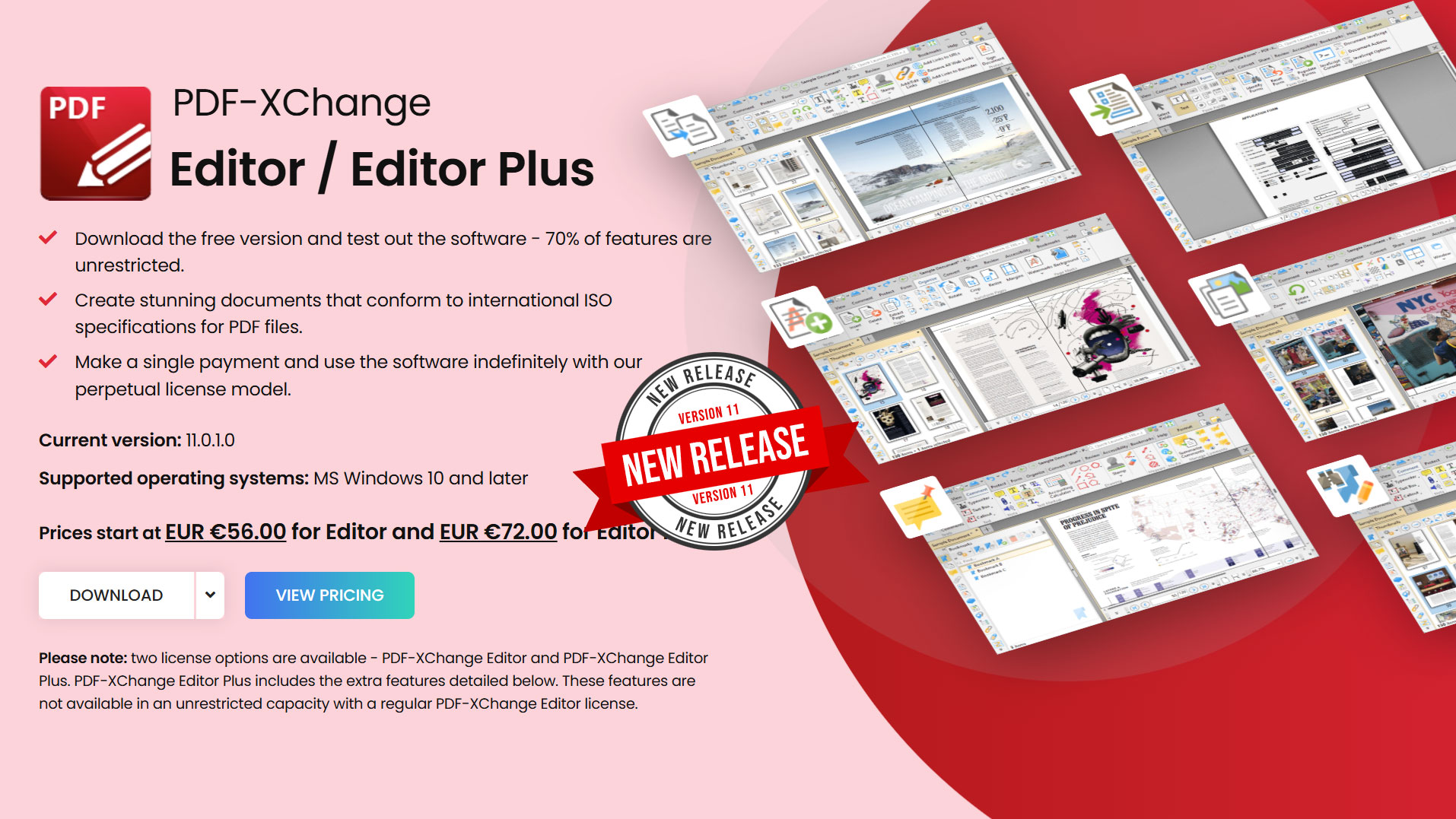
PDF-XChange Editor Review: A Powerful PDF Editor for Windows
PDF files are supposed to be easy to share and view, but working with them can be a different story.
You may need to change text, add an image, fill out a form, insert a signature, rearrange pages, add comments, or extract information from a scanned document.
That is where dedicated PDF software becomes useful.
PDF-XChange Editor is a Windows application designed for users who need to do much more than simply read PDF files.
It combines PDF viewing, editing, annotation, document creation, OCR, forms, security, and document-management features into one application.
In this review, we’ll look at what PDF-XChange Editor does, its main features, and what you should know before using it.
What Is PDF-XChange Editor?
PDF-XChange Editor is PDF software for Windows that allows users to view, create, edit, annotate, convert, and manage PDF documents.
It is designed around the idea that a PDF can be an active working document rather than simply a file that you open and read.
The application includes tools for:
- Reading PDF files
- Editing text
- Editing images
- Adding annotations
- Highlighting text
- Adding comments
- Creating PDF documents
- Creating and filling forms
- Adding signatures
- OCR
- Converting documents
- Organizing pages
- Combining PDF files
- Splitting documents
- Adding watermarks
- Protecting PDF files
- Redacting information
- Adding bookmarks
- Managing document properties
This makes PDF-XChange Editor a substantial piece of PDF software for Windows users.
PDF-XChange Editor for Windows
PDF-XChange Editor is primarily a Windows application.
It is designed for people who regularly work with PDF documents and need access to tools beyond basic PDF viewing.
The application provides a traditional desktop interface with a large collection of tools and options.
That means there is a learning curve.
However, it also means that users who spend a lot of time working with PDFs have access to a large number of functions without having to constantly switch between applications.
Can You Edit PDFs With PDF-XChange Editor?
Yes.
PDF editing is one of the main functions of PDF-XChange Editor.
You can work with text and graphical elements inside a PDF document.
This is useful when you need to make corrections to an existing PDF and no longer have access to the original source document.
For example, you might need to correct:
- An address
- A telephone number
- A date
- A product description
- A paragraph of text
- A label
- A heading
Being able to make these changes directly in the PDF can save considerable time.
However, PDF editing is not always identical to editing the original Word, PowerPoint, or desktop-publishing document.
Complex layouts can contain multiple text boxes, graphics, tables, and embedded objects, so the results should always be checked after making significant changes.
PDF-XChange Editor Annotations
PDF annotations are another important part of the application.
Annotations allow you to add information to a document without necessarily changing the underlying content.
You can use them to:
- Highlight text
- Underline information
- Add comments
- Draw shapes
- Add arrows
- Add stamps
- Make notes
- Mark areas of a document
This is particularly useful for document review.
For example, you could receive a technical specification from a client and use annotations to identify questions or sections that require clarification.
Working With PDF Forms
PDF forms are common in business, government, education, and administration.
PDF-XChange Editor provides tools for working with PDF forms.
You can fill out existing forms and work with interactive PDF form fields.
The software also provides tools for creating and editing form fields, which can be useful when you need to turn a static document into an interactive form.
Forms can include fields such as:
- Text fields
- Checkboxes
- Radio buttons
- Dropdown menus
- Signature fields
This can be particularly useful for businesses that distribute forms electronically.
Creating PDF Documents
PDF-XChange Editor isn’t limited to editing existing PDFs.
It can also be used as part of a document-creation workflow.
Documents can be created from various sources and converted into PDF format.
This makes it useful when PDF is the final format you need to distribute.
PDF is particularly useful for documents that need to maintain a consistent layout across different computers and operating systems.
OCR in PDF-XChange Editor
OCR stands for Optical Character Recognition.
It is particularly important when working with scanned documents.
Imagine scanning a paper contract.
The resulting PDF may look like a normal document, but the text may actually be stored as an image.
You cannot easily search for individual words or edit the text.
OCR attempts to recognize the characters in the scanned image and turn them into searchable text.
PDF-XChange Editor provides OCR functionality for working with scanned documents.
This can be useful when digitizing:
- Old paperwork
- Scanned contracts
- Invoices
- Receipts
- Manuals
- Historical documents
- Administrative records
OCR accuracy depends heavily on the quality of the original scan.
A clean, high-resolution document will generally produce better results than a badly scanned or damaged document.
PDF Conversion
PDF-XChange Editor also provides document conversion functionality.
Converting PDFs can be useful when a document needs to be edited in another format.
For example, a PDF may need to be converted into a Microsoft Word document for further editing.
Conversion is not always perfect.
Documents containing tables, multiple columns, unusual fonts, graphics, or complex layouts can be challenging to convert accurately.
For important documents, always review the converted file before using it.
Organizing PDF Pages
Long PDF documents can become difficult to manage.
PDF-XChange Editor provides tools for working with individual pages.
You can perform tasks such as:
- Reordering pages
- Rotating pages
- Deleting pages
- Inserting pages
- Extracting pages
- Combining documents
- Splitting documents
This is useful when creating a final document from several different sources.
For example, you could assemble a report containing a cover page, main document, appendices, and supporting documents into a single PDF.
PDF Bookmarks
Bookmarks are useful for navigating long documents.
Instead of scrolling through dozens or hundreds of pages, you can use bookmarks to jump directly to important sections.
PDF-XChange Editor allows users to create and manage PDF bookmarks.
This can be particularly useful for:
- Technical manuals
- Reports
- Training documents
- Research papers
- Business documentation
- Books
Well-structured bookmarks can make a large PDF considerably easier to navigate.
Redacting Sensitive Information
Redaction is an important PDF function when dealing with sensitive information.
Simply drawing a black rectangle over information is not necessarily sufficient.
Proper PDF redaction removes or permanently obscures the underlying information so that it cannot simply be copied or revealed.
PDF-XChange Editor provides redaction functionality for documents where sensitive information needs to be removed.
This can be useful when preparing documents for publication or sharing.
Examples include:
- Personal information
- Account numbers
- Addresses
- Confidential business information
- Internal notes
- Other sensitive content
Always verify the resulting document after redaction to ensure the information has actually been removed.
PDF Security
PDF documents can contain sensitive information.
PDF-XChange Editor provides security-related tools that allow users to apply restrictions and protection to PDF documents.
Depending on the document and workflow, PDF security can be used to control access or limit certain actions.
Security should nevertheless be considered as part of a broader information-security strategy.
Password-protecting a PDF does not automatically make the entire document workflow secure.
You should also consider:
- Where the file is stored
- Who can access it
- How it is transmitted
- Whether copies exist elsewhere
- Whether the document contains personal information
Digital Signatures
Digital signatures can help verify the identity of the signer and whether a signed document has been changed.
PDF-XChange Editor provides functionality for working with signatures and signing PDF documents.
The exact requirements depend on the type of signature you need.
There is an important distinction between a simple electronic signature and a certificate-based digital signature.
For contracts or documents with legal or regulatory requirements, make sure the signing method meets the requirements applicable to your situation.
Watermarks
Watermarks can be useful when distributing documents.
You might want to mark a document as:
- Confidential
- Draft
- Internal
- Copy
- For Review
PDF-XChange Editor provides tools for adding watermarks to PDF documents.
Watermarks can be particularly useful for business documents that are circulated internally before final publication.
PDF Properties and Metadata
PDF documents can contain metadata.
This can include information such as:
- Author
- Title
- Subject
- Keywords
- Creation information
PDF-XChange Editor provides tools for working with document properties.
This is useful when preparing documents for publication or archiving.
It is worth checking metadata before publishing sensitive documents because metadata can sometimes contain information you did not intend to distribute.
Is PDF-XChange Editor Free?
PDF-XChange Editor has a free version with a substantial collection of PDF functionality.
However, some advanced features are available only through licensed functionality.
This is important because using a feature that requires a license may result in limitations or other licensing-related behavior.
If you are using PDF-XChange Editor professionally, check the current licensing terms and determine which features are included in your particular license.
Software licensing can change over time, so always check the current information before purchasing.
PDF-XChange Editor Interface
PDF applications can contain a large number of tools.
PDF-XChange Editor is no exception.
The interface provides access to a substantial collection of functions, which can initially appear overwhelming.
The advantage is that the tools are available when you need them.
The disadvantage is that someone who only occasionally works with PDFs may need some time to learn where everything is located.
For regular users, learning the interface can pay off because many PDF tasks can be completed without leaving the application.
Who Is PDF-XChange Editor For?
PDF-XChange Editor can be useful for a broad range of users.
Home Users
Home users can use it for forms, documents, scanned paperwork, manuals, and other PDF files.
Students
Students can use PDF annotations, highlighting, bookmarks, and document-management tools when working with course material.
Consultants
Consultants frequently work with reports, specifications, contracts, and client documentation.
The ability to annotate, edit, sign, and organize PDFs can be useful in these workflows.
Small Businesses
Small businesses can use PDF software for contracts, forms, invoices, reports, and internal documentation.
IT Professionals
IT professionals frequently encounter PDF documentation, manuals, procedures, specifications, and reports.
Features such as search, OCR, annotations, bookmarks, and document organization can make working with large documents easier.
PDF-XChange Editor Pros and Cons
Pros
- Extensive PDF functionality
- PDF text editing
- Image editing
- Annotation tools
- OCR
- PDF forms
- Digital signatures
- Redaction
- Watermarks
- Page-management tools
- Bookmarks
- PDF security features
- Document metadata tools
- Free functionality available
Cons
- The large number of features creates a learning curve
- Some advanced functions require a license
- The interface can appear busy to new users
- Not every feature is necessary for someone who only reads PDFs
Is PDF-XChange Editor Worth Using?
If you regularly work with PDF documents, PDF-XChange Editor provides a substantial collection of tools in one Windows application.
Its strengths are particularly apparent when you move beyond simply reading PDFs.
Editing, OCR, annotations, forms, signatures, redaction, page management, and document security can all become important parts of a professional PDF workflow.
The software is also flexible enough to be useful for ordinary home users who occasionally need more advanced PDF functionality.
The main consideration is the learning curve.
There are a lot of tools available, and you do not need to learn all of them.
Start with the functions you actually need and expand your knowledge as your PDF requirements grow.
Final Thoughts
PDF-XChange Editor is a feature-rich PDF application for Windows.
It provides tools for reading, editing, annotating, converting, organizing, signing, securing, and managing PDF documents.
For users who regularly work with PDFs, having this range of functionality in a single application can make everyday document work considerably easier.
The software is particularly interesting for people who need more than basic PDF viewing but do not want to manage a collection of separate tools for different PDF tasks.
The key is to understand which features you actually need.
If you regularly work with PDF documents, features such as OCR, redaction, forms, annotations, signatures, and page management can be valuable additions to your workflow.
PDF-XChange Editor is best approached as a complete PDF workbench rather than simply another PDF reader.
Comments(0)
Please to post a comment or reply.