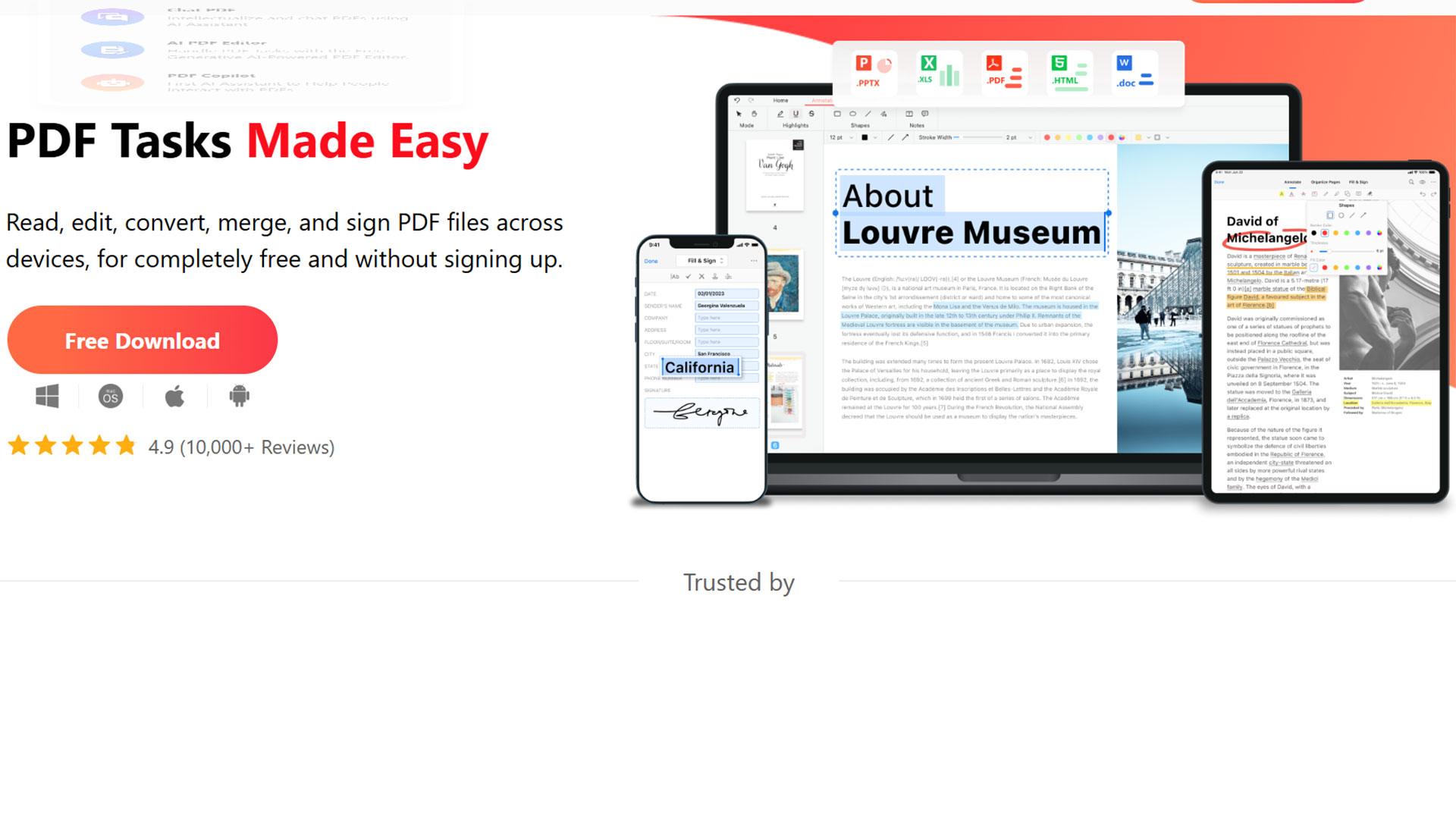
PDFgear Review: A Free PDF Editor for Windows
PDF files are part of everyday computing. Whether you are working with invoices, contracts, forms, reports, manuals, or scanned documents, sooner or later you will probably need to do more than simply open a PDF.
You may need to edit some text, add a signature, rearrange pages, convert a document, extract information, or combine several PDF files into one.
This is where PDFgear comes in.
PDFgear is a PDF reader and editor that provides a broad range of tools for working with PDF documents. It is available across desktop and mobile platforms, while its Windows application provides a particularly extensive set of document tools.
In this PDFgear review, we look at what the software can do, its main features, and the types of PDF tasks it can handle.
What Is PDFgear?
PDFgear is PDF software designed for reading, editing, converting, organizing, and managing PDF documents.
Rather than being limited to viewing PDF files, PDFgear provides tools for modifying documents and performing common PDF-related tasks.
Some of its features include:
- Reading PDF files
- Editing PDF text
- Editing PDF images
- Adding annotations
- Filling out PDF forms
- Adding signatures
- Converting PDF files
- Combining PDF documents
- Splitting PDF files
- Rearranging pages
- Adding page numbers
- OCR for scanned documents
- Managing PDF attachments
- Compressing PDFs
- Adding stamps
- AI-assisted PDF features
- eSign functionality
PDFgear’s feature set has continued to expand. Recent releases have added functionality such as secure eSign, signature requests, OCR, attachment management, image editing, translation, and additional PDF page-management tools.
Is PDFgear Free?
One of the main attractions of PDFgear is its free PDF functionality.
The company provides desktop and online PDF tools that allow users to perform many common PDF tasks without immediately requiring a paid subscription.
For example, PDFgear provides online tools for tasks such as merging PDF files, and its online PDF merger can be used without creating an account or entering payment details.
This makes PDFgear particularly interesting for users who only occasionally need to perform more advanced PDF tasks.
However, it is still worth checking the current PDFgear website for the latest information about individual features, platforms, and service limitations.
PDFgear for Windows
For Windows users, PDFgear provides a dedicated desktop application.
The Windows version is designed for both reading and editing PDF documents and includes a large collection of document-management tools.
You can open an existing PDF and work directly with its contents instead of having to convert the document before making changes.
This can be useful when you receive a PDF that contains information that needs to be corrected or updated.
Editing Text in a PDF
One of the most useful features of PDFgear is the ability to edit text directly inside a PDF.
According to PDFgear’s current documentation, users can add, replace, and remove text while also modifying text characteristics such as size, font, color, highlighting, underlining, and strikethrough.
This can be useful when a small correction needs to be made to an existing PDF.
For example, imagine receiving a PDF containing an incorrect telephone number or address. If you have the original document, editing that source file may still be preferable.
But if the original source file is unavailable, direct PDF editing can save considerable time.
Editing Images in PDF Documents
PDF documents are not limited to text.
Many PDFs contain logos, photographs, diagrams, screenshots, and other graphical elements.
PDFgear has added functionality for working with images inside PDF documents, including adding and editing images.
This gives users greater control over the contents of a PDF without having to recreate the entire document.
PDF Conversion
Converting PDF files into other formats is another common requirement.
For example, you might receive a PDF and need to continue working with its contents in Microsoft Word.
PDFgear provides PDF conversion tools for formats including Word, and its Windows conversion workflow also supports OCR for scanned documents.
OCR, or Optical Character Recognition, is particularly useful when the PDF does not contain normal selectable text.
Instead, the document may consist of scanned images.
OCR attempts to recognize the text contained in those images and turn it into searchable or editable text.
OCR for Scanned PDFs
Scanned documents present a particular problem.
If you scan a paper document, the resulting PDF may essentially contain photographs of each page rather than actual text.
That means you cannot normally search or edit the words.
PDFgear has added OCR functionality designed to turn scanned documents into searchable text.
This can be useful when digitizing older paperwork or working with scanned business documents.
OCR is not always perfect, particularly with poor-quality scans, unusual fonts, handwriting, or complicated layouts, so important documents should still be checked after processing.
Merge PDF Files
Another common PDF task is combining multiple documents into a single file.
For example, you might have:
- A report
- An appendix
- Supporting documentation
- A signed form
- Several scanned pages
PDFgear provides tools for combining PDF files and arranging the resulting document.
Its online PDF merger also allows users to arrange files and individual pages before exporting the final document.
This is a simple feature, but one that can save time when dealing with multiple documents.
Split and Organize PDF Pages
Sometimes the opposite is required.
Instead of combining documents, you may have a large PDF and only need several pages from it.
PDFgear provides PDF page-management tools for tasks such as splitting documents and rearranging pages.
The software has also received improvements to its thumbnail and page-management interfaces, making it easier to organize pages within a document.
Add Page Numbers to PDFs
Page numbers are useful when dealing with reports, manuals, presentations, and longer documents.
PDFgear provides tools for adding page numbers and allows users to customize elements such as positioning, alignment, margins, and page ranges.
This is particularly useful when a document has been assembled from multiple sources and needs consistent pagination before being distributed.
PDF Annotations
PDFgear also includes annotation tools.
Annotations allow you to mark up a document without necessarily changing its underlying text.
Typical uses include:
- Highlighting important information
- Adding comments
- Underlining text
- Adding stamps
- Marking sections for review
- Making notes
This can be useful for students, consultants, office workers, and anyone who regularly reviews PDF documents.
Fill and Sign PDF Documents
Many PDF files are forms.
Instead of printing a document, filling it out manually, scanning it, and sending it back, PDF software can allow you to complete the process digitally.
PDFgear supports filling PDF forms and adding electronic signatures.
The software’s recent development has also introduced eSign functionality, including certificate-based digital signatures and workflows for requesting signatures from other people.
If you use electronic signatures for legally significant documents, however, make sure you understand the distinction between a basic electronic signature and a certificate-based digital signature, and verify that the method meets the requirements of your particular situation.
PDFgear Copilot and AI Features
PDFgear also includes AI functionality through PDFgear Copilot.
The idea is straightforward: instead of manually working through a long PDF, you can use AI-based tools to interact with the document.
This can be useful for tasks such as:
- Asking questions about a document
- Finding information
- Summarizing content
- Understanding lengthy documents
- Extracting information
AI is particularly useful when dealing with long reports, manuals, research papers, and other information-heavy documents.
However, AI-generated answers should be treated as assistance rather than unquestionable fact.
For legal, financial, technical, or other important documents, always verify important information against the original PDF.
Managing PDF Attachments
PDF files can contain attachments.
For example, a PDF report might contain an Excel spreadsheet, Word document, image, or another PDF as an embedded attachment.
PDFgear supports managing PDF attachments on Windows. Users can add, open, save, edit descriptions, and remove attachments through the attachment panel.
This is a useful feature for people who work with complex document packages.
PDFgear on Multiple Platforms
PDFgear is not limited to Windows.
Its current ecosystem includes applications and online tools for multiple platforms, allowing users to work with PDF documents across desktop and mobile devices.
The exact features can vary depending on the platform, so users who move between Windows, Mac, iPhone, iPad, and Android should check which functions are available on each device.
PDFgear User Interface
PDF software can become complicated very quickly.
There are usually many different tools, menus, buttons, and document-management functions competing for space.
PDFgear takes a feature-rich approach, so there is naturally more to learn than with a basic PDF reader.
However, this also means that once you become familiar with the interface, many common PDF tasks can be performed from one application.
For occasional users, some of the advanced tools may never be needed.
For frequent PDF users, having those tools available can be useful.
PDFgear Security and Privacy
PDF documents can contain sensitive information, particularly when they include contracts, personal information, financial documents, or business data.
This makes privacy an important consideration when choosing PDF software.
PDFgear provides both desktop and online PDF tools, so users should pay attention to whether they are working with a local desktop application or uploading a document to an online service.
For sensitive documents, an offline workflow can be preferable when practical.
You should also use normal security precautions:
- Keep PDFgear updated
- Download software from the official source
- Avoid opening suspicious PDF files
- Protect sensitive PDF documents
- Check documents before sharing them
- Be careful when uploading confidential documents to online services
Who Is PDFgear For?
PDFgear can be useful for a wide range of users.
Home users
Home users may need PDF software for forms, invoices, applications, scanned documents, and personal paperwork.
Students
Students can use PDF tools for reading course material, highlighting documents, adding notes, and managing assignments.
Freelancers and consultants
PDF editing and signing can be useful when working with contracts, proposals, reports, and client documentation.
Small businesses
Small businesses often deal with PDF invoices, forms, contracts, reports, and administrative documents.
Having a collection of PDF tools in one application can simplify these workflows.
Office workers
Anyone who regularly receives and sends PDF documents can benefit from tools for editing, converting, organizing, signing, and annotating documents.
PDFgear Pros and Cons
Pros
- Broad range of PDF tools
- PDF text editing
- PDF conversion
- OCR support
- PDF annotations
- Form filling
- Electronic signatures
- PDF page management
- PDF merging and splitting
- Image editing within PDFs
- AI-powered PDF functionality
- PDF attachment management
- Regular feature updates
Cons
- The large number of features can take some time to learn
- Some features differ between platforms
- AI-generated information should always be verified for important documents
- Online PDF tools require additional consideration when working with confidential documents
Is PDFgear Worth Using?
If you regularly work with PDF documents, PDFgear is worth investigating.
Its usefulness comes from the breadth of tasks it can perform.
You can read PDFs, edit text, convert documents, work with scanned files, manage pages, add annotations, fill forms, sign documents, and use AI-assisted tools.
It is particularly interesting for Windows users who want a dedicated PDF application rather than relying exclusively on a web browser to handle PDF files.
The important thing is to choose the features that actually fit your workflow.
You do not need to use every tool simply because it is available.
Final Thoughts
PDFgear has developed into a substantial PDF application rather than simply a basic PDF reader.
Its current feature set covers many of the tasks that ordinary users encounter when working with PDF documents.
From editing text and converting documents to OCR, annotations, page management, signatures, and AI-assisted document analysis, there is a lot packed into the application.
The software is also actively developed, with recent updates adding features such as secure eSign and signature-request workflows.
For someone who regularly works with PDF documents, that makes PDFgear an application worth taking a closer look at.
The best way to judge any PDF application, however, is not by counting features.
It is by asking a simpler question:
Can it handle the PDF tasks you actually need to perform?
For many everyday PDF workflows, PDFgear provides a substantial collection of tools in one application.
Frequently Asked Questions
What is PDFgear?
PDFgear is software for reading, editing, converting, organizing, signing, and managing PDF documents.
Is PDFgear free?
PDFgear provides a substantial range of free PDF tools, including desktop and online functionality. Feature availability can vary, so check the current official product information.
Can PDFgear edit PDF text?
Yes. PDFgear supports adding, editing, replacing, and removing PDF text.
Can PDFgear convert PDF to Word?
Yes. PDFgear provides PDF-to-Word conversion and supports OCR for scanned documents in its Windows workflow.
Can PDFgear merge PDF files?
Yes. PDFgear provides tools for combining multiple PDF files into a single document.
Can PDFgear work with scanned PDFs?
Yes. PDFgear provides OCR functionality that can recognize text in scanned PDF documents.
Can PDFgear sign PDF documents?
Yes. PDFgear supports electronic signing, and recent versions have added certificate-based eSign and signature-request functionality.
Does PDFgear have AI features?
Yes. PDFgear includes AI-assisted functionality for working with PDF documents, including its PDFgear Copilot feature.
Is PDFgear available for Windows 11?
Yes. PDFgear provides a Windows desktop application that supports modern Windows systems.
Who should use PDFgear?
PDFgear is aimed at people who regularly need to read, edit, convert, organize, annotate, sign, or otherwise work with PDF documents.
Comments(0)
Please to post a comment or reply.